From Password Alert to protections built into the browser
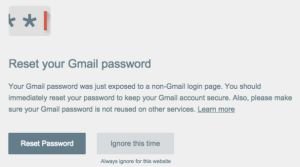
In 2015, Google launched Password Alert, a Chrome extension that warned you when you typed your Google password on a page that was not a Google login page. This article first presented it. Today, Password Alert is mainly a tool that companies using Google Workspace can deploy for their staff. For everyday users, most of what it did, and more, is now built into Chrome and your Google account.
Updated November 2026.
What protects you today, without installing anything
Safe Browsing. Chrome checks the sites you visit against Google’s list of known phishing and malware sites and shows a red warning page when one matches. In Chrome’s security settings you can choose “Enhanced protection”, which adds real-time checks, in exchange for sharing more browsing data with Google.
Google Password Manager and Password Checkup. If you let Chrome save your passwords, it can tell you which ones have appeared in a data leak, which are reused and which are weak. You can run the check at any time on passwords.google.com.
Passkeys. Your Google account can use a passkey instead of a password: you unlock it with your phone’s fingerprint, face or PIN. A passkey only works on the real Google site, so a fake login page cannot capture it. That is the protection Password Alert was trying to approximate in 2015.
Gmail warnings. Gmail labels many suspicious messages and lets you report phishing from the message menu.
Why a password manager helps against phishing
A password manager fills in your password only on the site it was saved for. If it does not offer to fill in your Google or bank password on a page that looks right, stop: the address is probably not the real one. That simple signal catches many fake login pages.
What still depends on you
None of these tools catches every new fake page, and none stops you from reading a code to a caller. Three habits remain essential:
- Go to important sites (bank, email, PayPal) by typing the address or using a bookmark, not through a link in a message.
- Never give a verification code to someone who contacts you, whatever they say.
- Turn on two-step verification, and use passkeys where they are offered.
Your Google account’s Security Checkup shows in a few minutes which of these protections are active. For more on fake login pages, see our phishing section and our article on phishing aimed at Gmail users.
Sources
- Google Workspace Admin Help, Password Alert.
- Google, Safe Browsing.